
Introduction — LLMs on NRP
- What LLM resources does NRP provide for CMS researchers?
- How do I get access?
- What can I do with these resources?
- Understand what the NRP managed LLM service is and what models are available.
- Know how to obtain an API token and reach the endpoint.
- Identify the browser-based and programmatic entry points.
Overview
The National Research Platform (NRP) makes large language models available to the entire US-CMS community through a managed, OpenAI-compatible inference endpoint. You do not need to rent cloud credits, install model weights, or request a GPU — you just point any OpenAI-compatible tool at NRP's URL and authenticate with a personal token.
This lesson covers what is available, how to get access, and the different ways you can interact with the models.
What NRP Provides
NRP exposes two complementary AI/LLM resources:
1. Managed LLM Service
A rotating catalog of open-weights models hosted on NRP GPUs, reachable two ways:
- Programmatically, behind a single OpenAI-compatible REST endpoint:
`` https://ellm.nrp-nautilus.io/v1 ``
You authenticate with a bearer token (see Getting Access below). The endpoint speaks the OpenAI API, so any tool that supports a custom base_url works out of the box.
- In the browser, via Open WebUI, signed in with your NRP/CERN account — no API token needed. Useful for quick experiments and sharing demos with collaborators.
Currently available models (see live list):
| Model | HuggingFace ID | Parameters | Context | Tools | Vision | Notes |
|---|---|---|---|---|---|---|
qwen3 | Qwen/Qwen3.5-397B-A17B-FP8 | 397B (17B active MoE) | 1.01M | ✓ | image, video | Largest context |
qwen3-small | Qwen/Qwen3.6-27B | 27B | 1.01M | ✓ | image, video | |
gpt-oss | openai/gpt-oss-120b | 120B | 131K | ✓ | — | Strong at code |
gemma | google/gemma-4-31B-it-qat-w4a16-ct | 31B | 262K | ✓ | image, video | |
gemma-small | google/gemma-4-12B-it-qat-w4a16-ct | 12B | 262K | ✓ | image, video | Evaluating — fast, good default |
minimax-m2 | MiniMaxAI/MiniMax-M2.7 | 230B | 204K | ✓ | — | Evaluating — strong reasoning |
glm-5 | nvidia/GLM-5.2-NVFP4 | 744B | 300K | ✓ | — | Evaluating |
deepseek-v4-flash | deepseek-ai/DeepSeek-V4-Flash-0731 | 304B | 1.05M | ✓ | — | Evaluating |
kimi | moonshotai/Kimi-K2.7-Code | 1T MoE | 131K | ✓ | image, video | Evaluating |
qwen3-embedding | Qwen/Qwen3-VL-Embedding-8B | 8B | 262K | — | image, video | Embeddings only — semantic search/RAG |
Evaluating models are under active testing — configuration can change without notice; stick to the others for anything you need to be stable through the workshop.
For most tasks, start with gemma-small (fast) or minimax-m2 (strong reasoning). Switch to qwen3 when you need the largest context window.
Models occasionally restart or roll over to a new version — check what's currently up at the LLM status dashboard.
2. Bring-Your-Own GPU
For workloads requiring full model control — custom weights, fine-tuning, custom quantization, or private inference — you can request your own GPU pod in your namespace and run any inference server (vLLM, TGI, Ollama, etc.). This is covered in other NRP training sessions.
Getting Access
Step 1: NRP Account
You need an NRP account associated with your institutional credentials (CERN SSO works for CMS members). If you don't have one yet, follow Getting Started with NRP.
For this training, you should be a member of the us-cms namespace. Contact the training organizers if you have not been added.
Step 2: Get an API Token
Go to https://nrp.ai/llmtoken and click Get LLM token. A personal bearer token will be sent to your email or displayed on the page.
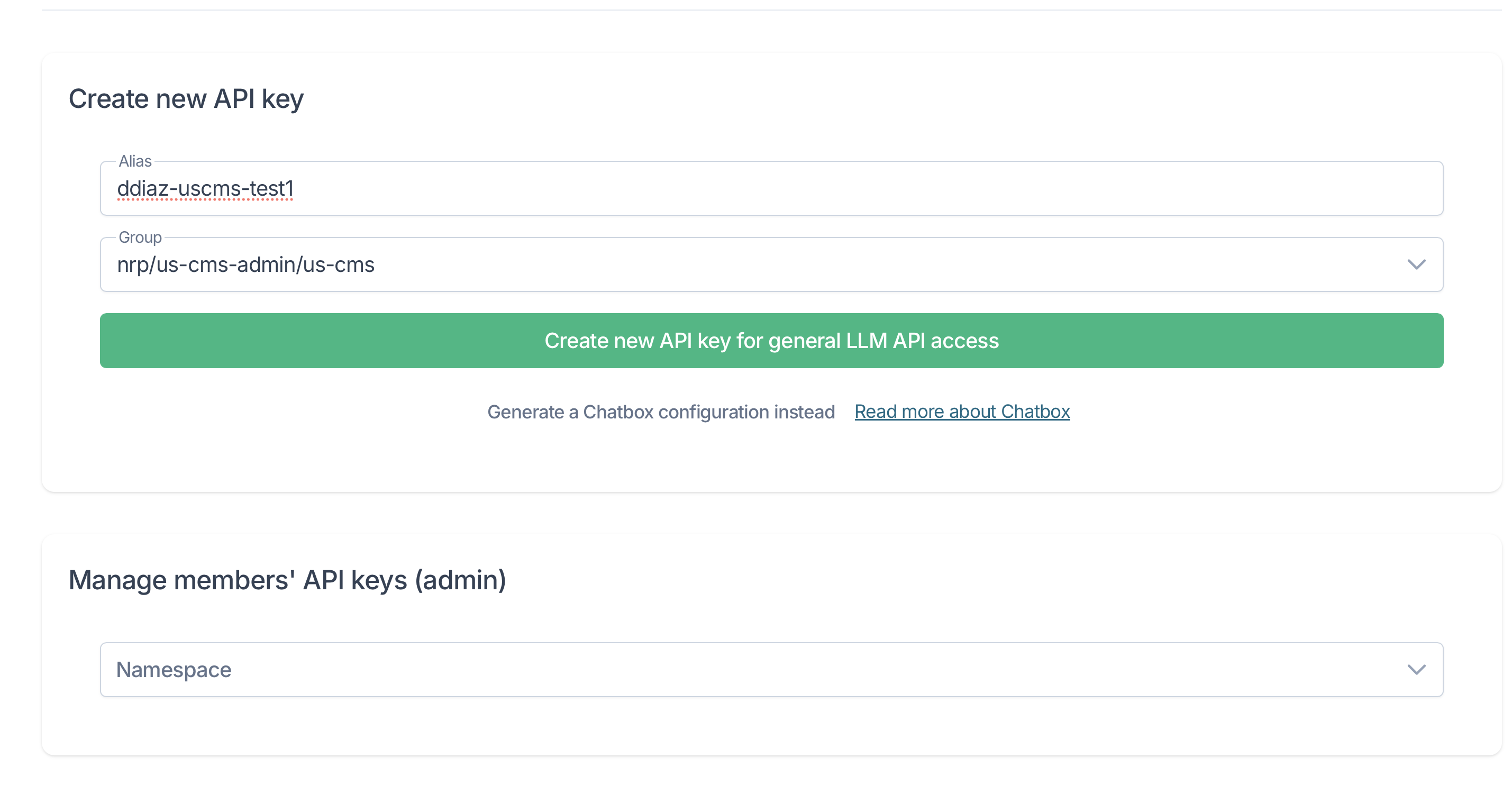
Treat your personal token like a password. Do not commit it to git or share it publicly. In notebooks and scripts, read it from an environment variable (OPENAI_API_KEY) rather than hard-coding it.
Whether you're on the NRP USCMS Analysis Facility or your own machine, export your own personal token and the endpoint URL yourself:
export OPENAI_API_BASE="https://ellm.nrp-nautilus.io/v1"
export OPENAI_API_KEY="<paste-your-token-here>"
Setting these from inside a notebook works a little differently — see the setup check at the start of Lesson 2.
Step 3: Verify Access
From a terminal (JupyterHub terminal or local machine with curl), send a real chat request — this actually exercises the model, not just the endpoint, so it's a more meaningful check than listing models:
curl -s -X POST "$OPENAI_API_BASE/chat/completions" \
     -H "Authorization: Bearer $OPENAI_API_KEY" \
     -H "Content-Type: application/json" \
     -d '{"model": "minimax-m2", "messages": [{"role": "user", "content": "Where is the CMS experiment located?"}]}'
You should get back a JSON response with a real answer buried in it (something about CERN, near Geneva, on the LHC).
For a cleaner look, pipe it through Python to pull out just the reply text:
curl -s -X POST "$OPENAI_API_BASE/chat/completions" \
     -H "Authorization: Bearer $OPENAI_API_KEY" \
     -H "Content-Type: application/json" \
     -d '{"model": "minimax-m2", "messages": [{"role": "user", "content": "Where is the CMS experiment located?"}]}' \
  | python3 -c 'import json, sys; print(json.load(sys.stdin)["choices"][0]["message"]["content"])'
You can also list the full model catalog:
curl -s -H "Authorization: Bearer $OPENAI_API_KEY" \
     "$OPENAI_API_BASE/models" \
  | python3 -m json.tool | head -20
Entry Points at a Glance
| Method | Where | When to Use |
|---|---|---|
| Open WebUI | Browser | Quick questions, no coding |
Python openai SDK | Notebook / script | Programmatic use, RAG, embeddings |
curl | Terminal | Quick smoke tests, scripting |
| Agentic tools (opencode, VS Code, Claude Code) | Terminal / IDE | AI-assisted coding and research |
How to Get Help
- NRP support chat (Slack / Matrix): https://nrp.ai/contact/
- NRP documentation: https://nrp.ai/documentation/
- LLM-specific docs: https://nrp.ai/documentation/userdocs/ai/llm-managed/
Run the Notebooks
You can run the notebooks for this training either on the NRP US-CMS Analysis Hub or on your own machine locally — the Analysis Hub is recommended since the packages are already installed for you. You'll still need your own personal API token either way (see Getting Access above).
▶ Launch the workspace in JupyterHub — signs you in at uscms-af.nrp-nautilus.io, pulls the tutorial workspace, and opens JupyterLab with the notebooks for this training.
- NRP runs an OpenAI-compatible managed LLM endpoint at
https://ellm.nrp-nautilus.io/v1. - Access requires an NRP account and a personal token from
https://nrp.ai/llmtoken. - The Open WebUI browser UI requires no token — sign in with your NRP/CERN account.
- The same
openaiPython SDK works against NRP, commercial providers, and your own GPU pods.